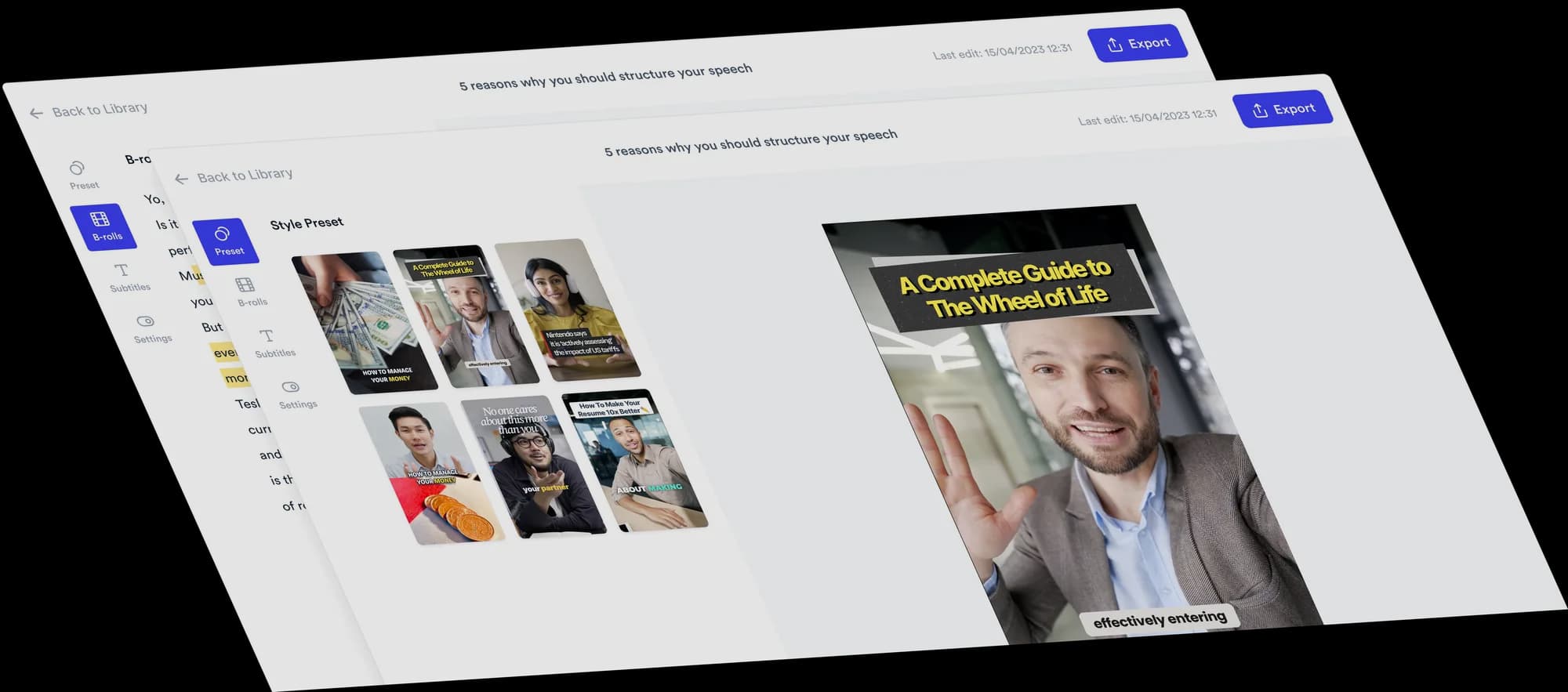
Transcript-Matched B-roll
Stock video and images from Getty Images, Pexels and Google Images, plus GIFs, matched to relevant moments in your transcript.

Upload a talking-head video and get an editable first cut with context-matched B-roll, subtitles, hooks, music and sound effects. Add a proven viral format like a Tier List or Green Screen explainer—all inside the same editable project.
 Used by 200K+ creators · Built for Coaches, Consultants, Founders & Educators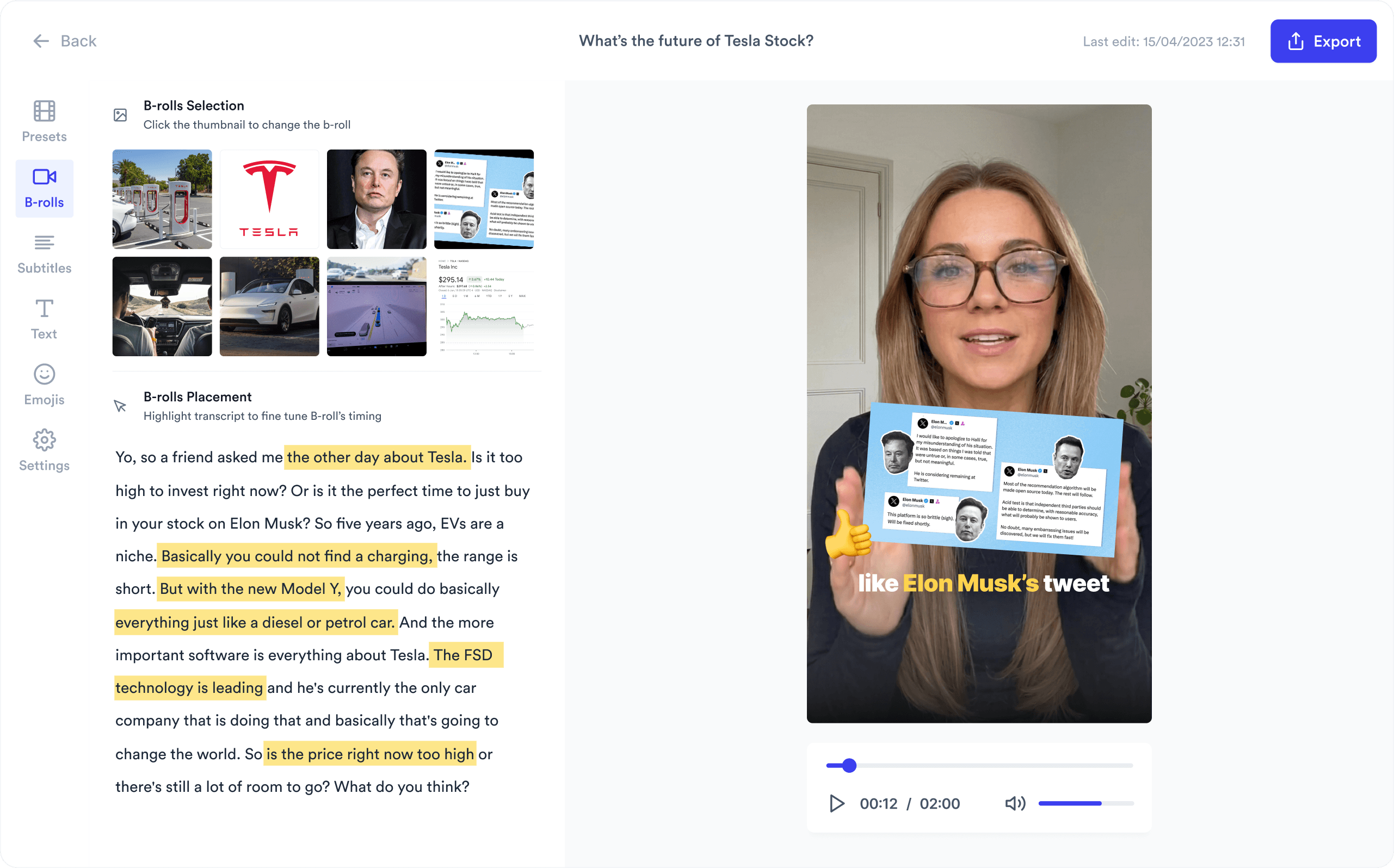






The editing happens before you open the editor. You only change what you disagree with.
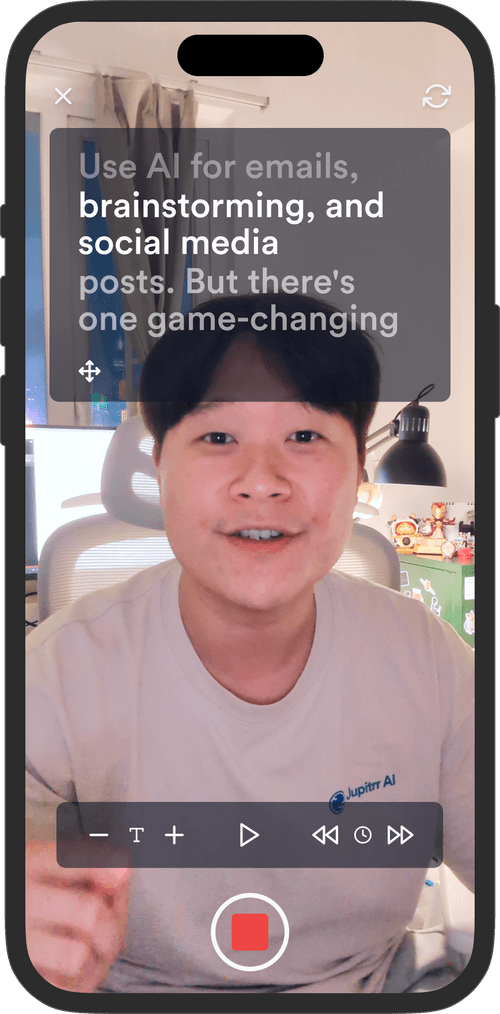
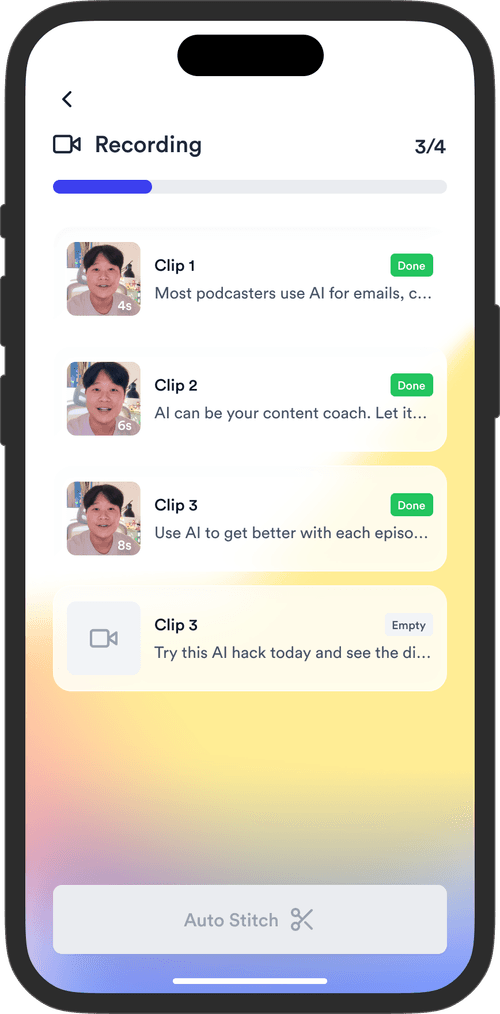
Record yourself talking to camera on a phone or webcam, then upload the MP4 or MOV. For a vertical video you can choose a format here, such as a Tier List or Green Screen. Jupitrr transcribes it and starts the edit straight away. There is no project to set up and no blank timeline to start from.
Scanning your footage...





Reading what you said…
The editor opens with the first edit already done: B-roll matched to relevant moments in your transcript, styled subtitles, an opening hook, text overlays, emojis, background music and sound effects. If you selected a format, it appears inside the same editable project.
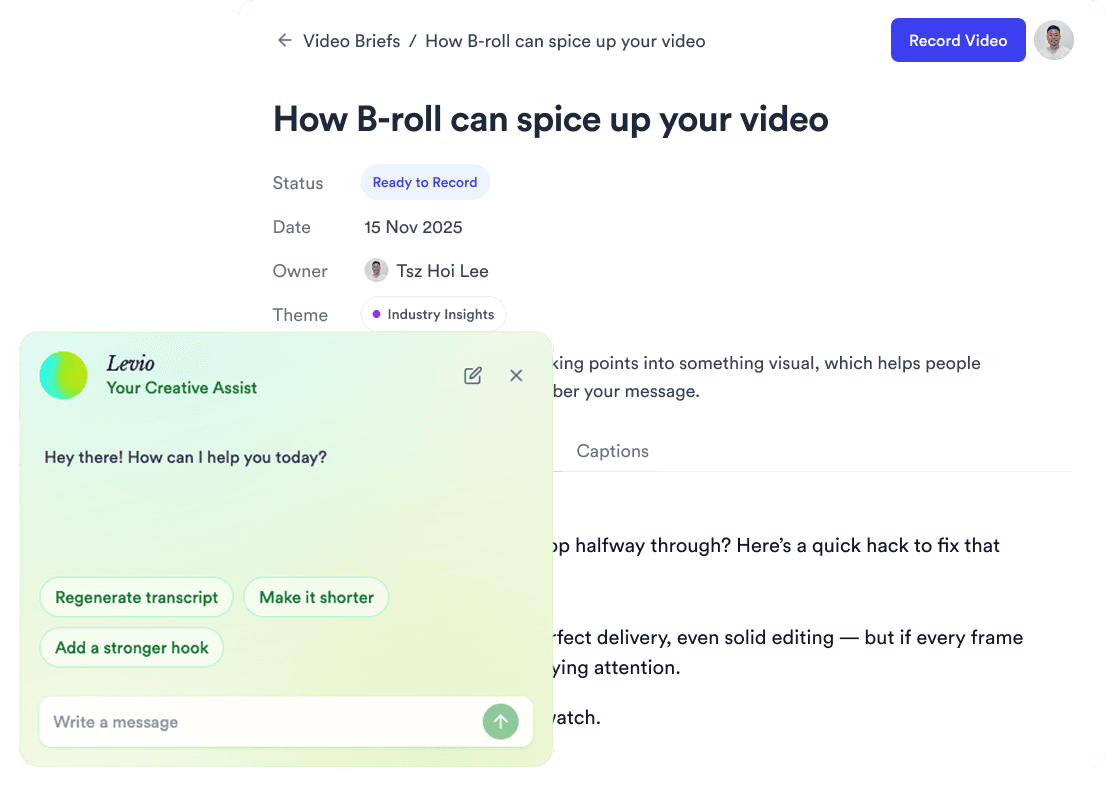
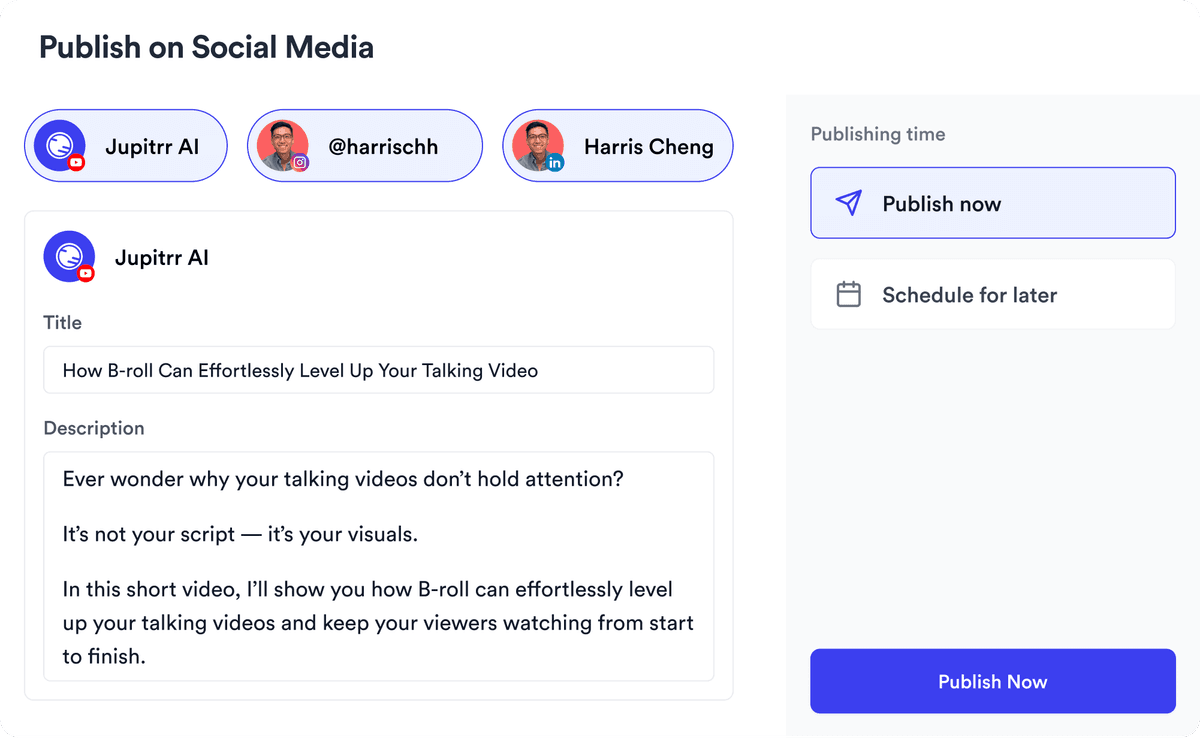
Watch it through and change only what you disagree with. Swap a clip, edit a caption, rewrite the hook or switch the subtitle style in a click, or ask Levio, the ChatGPT-powered editing agent, for the change in plain language and keep or undo the draft. Then export an MP4 in portrait, landscape or square, or schedule it to LinkedIn, YouTube, Instagram and TikTok from the content calendar.
Stock video and images from Getty Images, Pexels and Google Images, plus GIFs, matched to relevant moments in your transcript.
Generated in 54+ languages, with the language detected automatically and the styling matched to your brand.
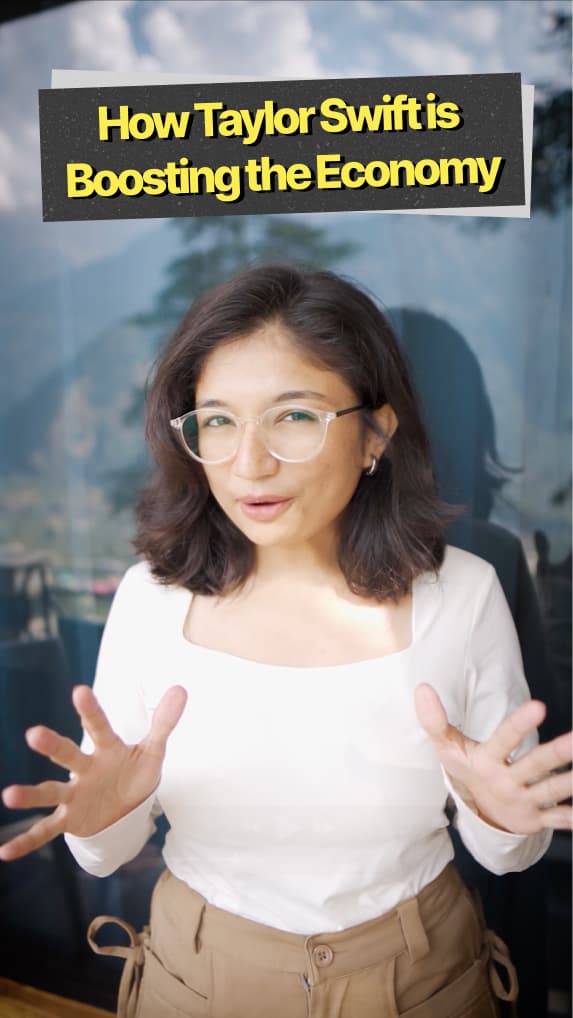
An AI-written line for the first three seconds, placed over the opening frames.
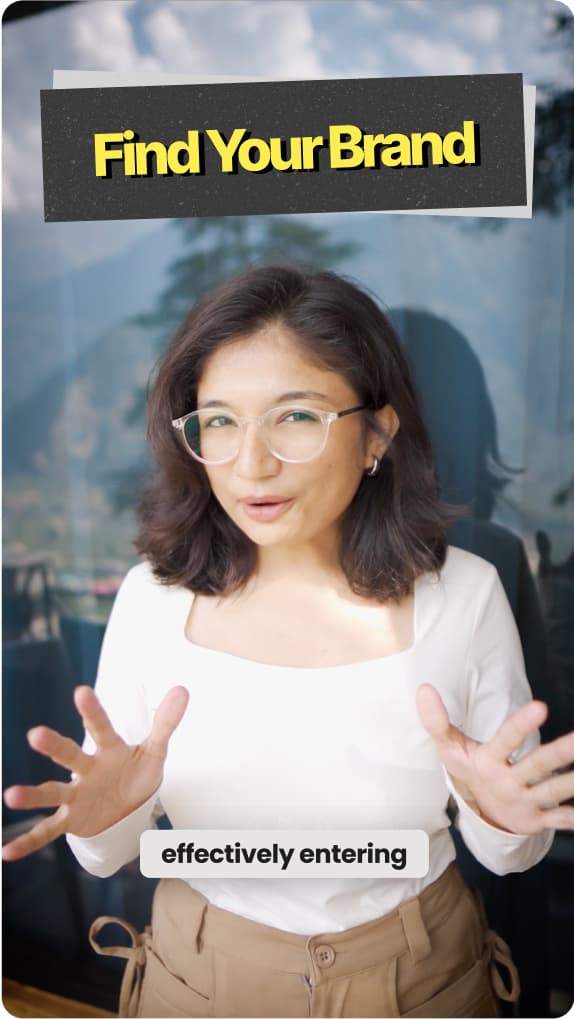
Headlines and emojis dropped onto the lines that carry the point.
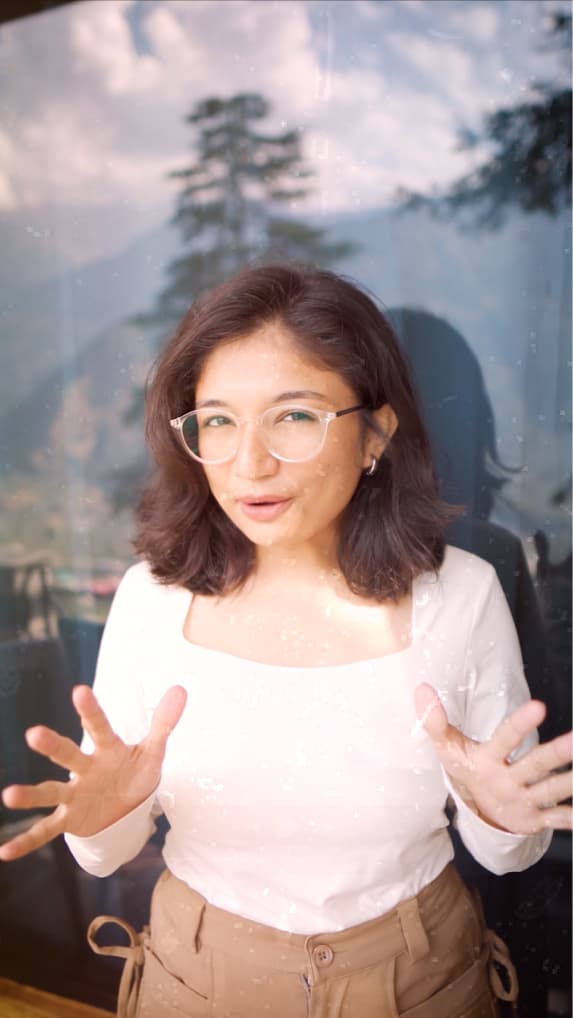
Background music matched to your tone, a sound effect on each cut, and clips that zoom, slide or fade in.
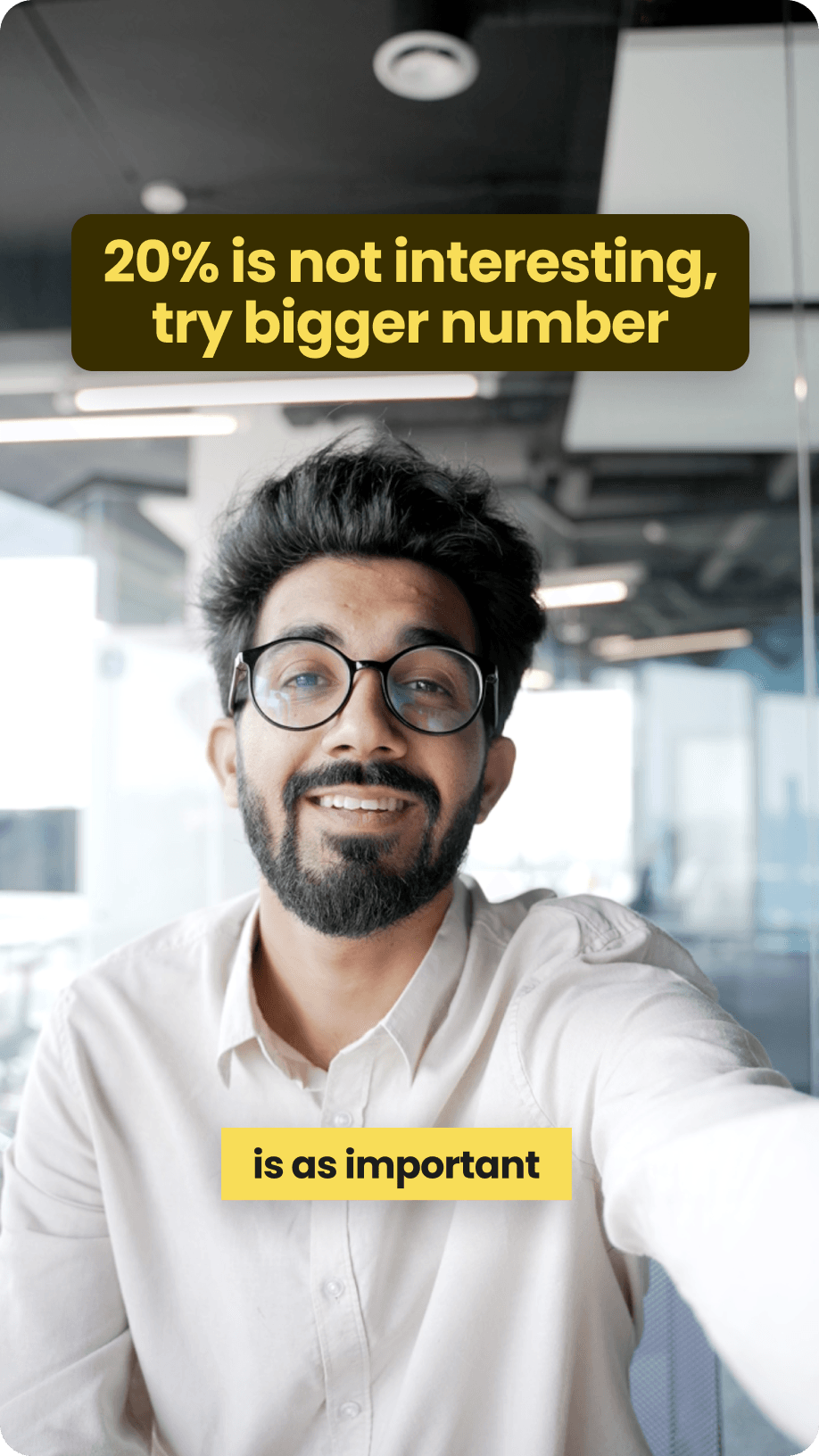
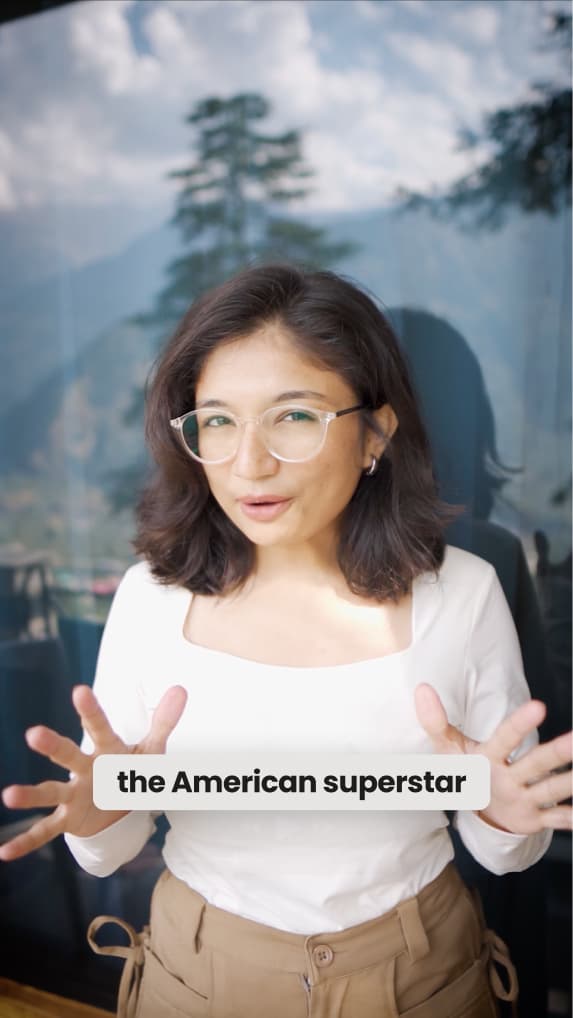
Pick from 24 subtitle styles, or save the caption and hook look you land on and apply it to every video after.
Choose from 8 formats, including Tier Lists and Green Screen explainers. Jupitrr automatically structures your content alongside your B-roll, subtitles, hook and music—and keeps everything editable.
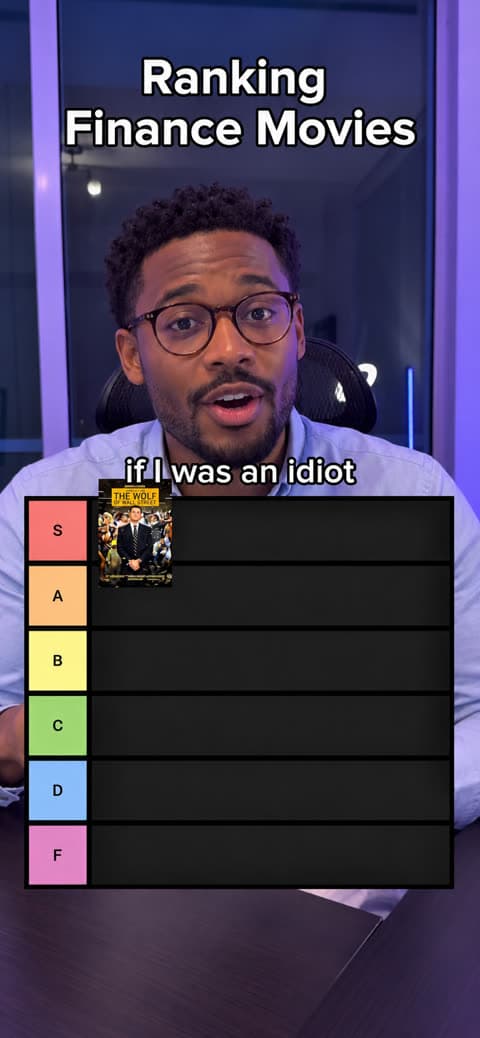
Popular ranking video where you rank and comment on different items.
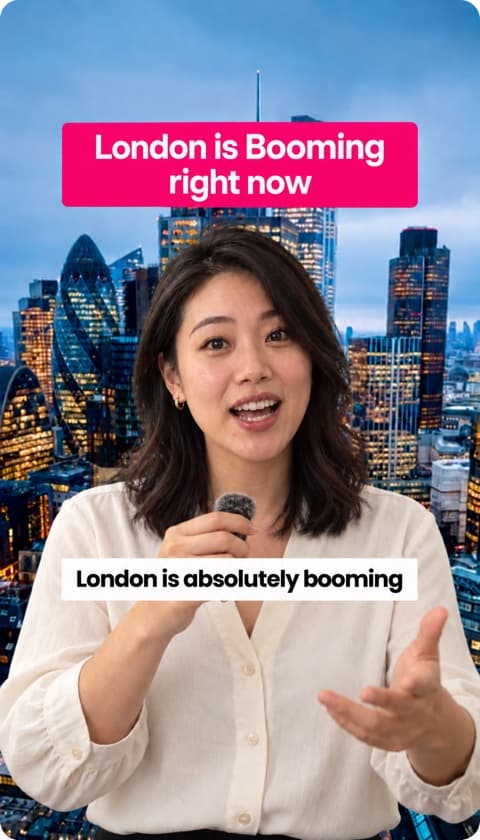
Use B-roll as your background to keep your video engaging.
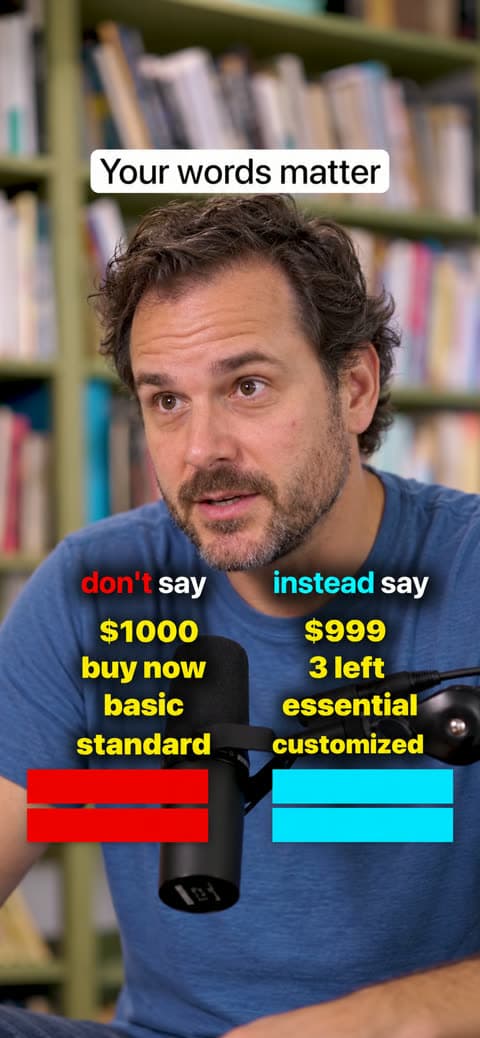
Show what not to say and what to say instead, word by word.
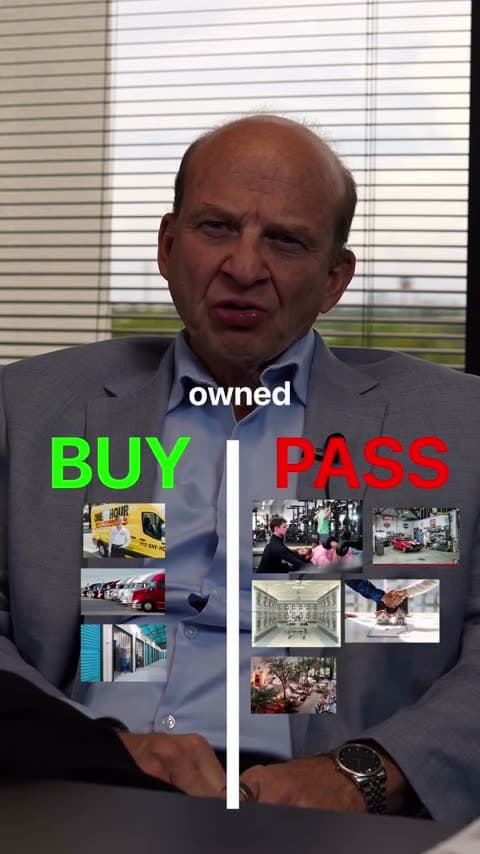
Sort what you mention into two sides, like buy or pass.
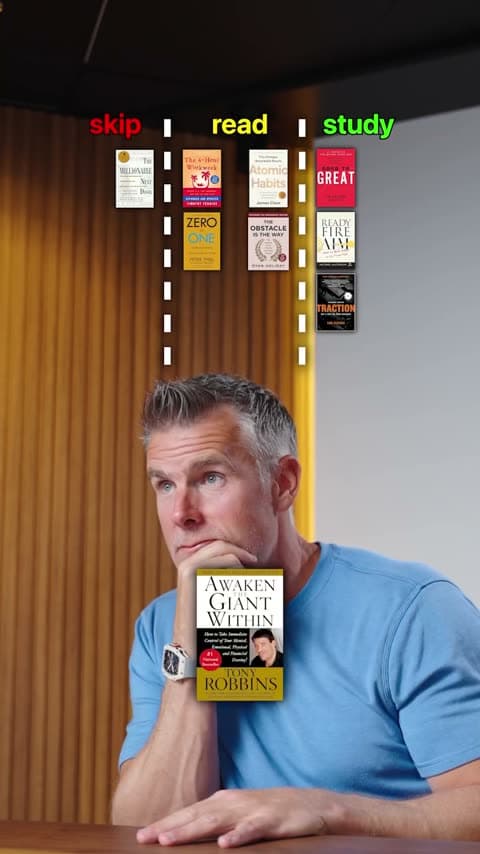
Sort items into three groups, like skip, read or study.
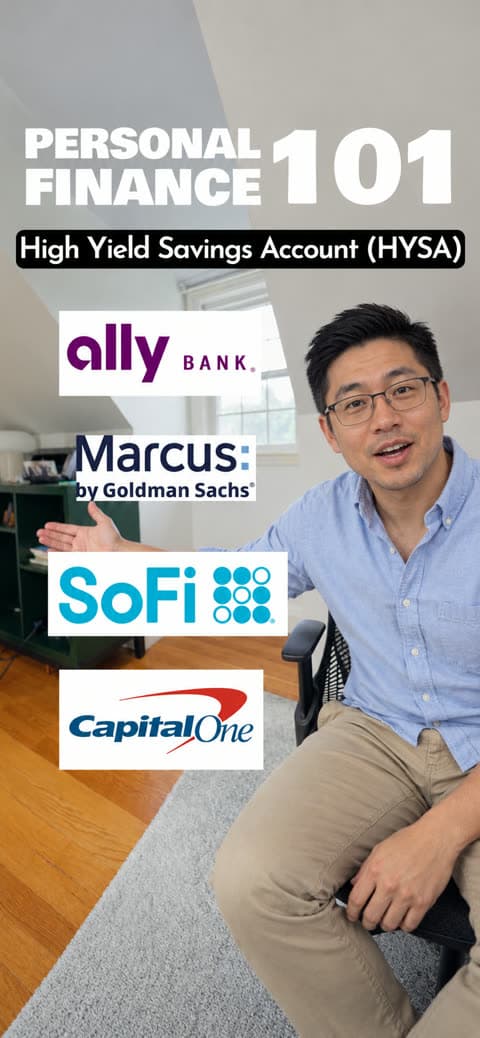
Stack the logos of the brands and tools you mention.
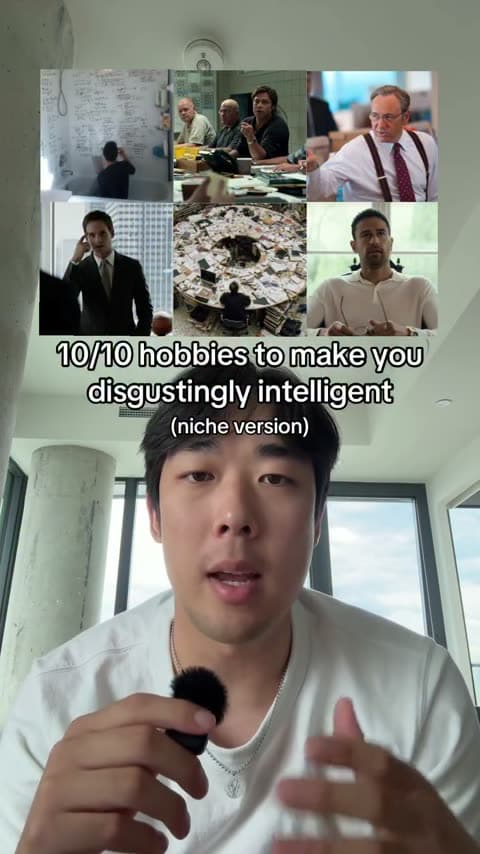
Open with a grid of B-roll above your hook title.
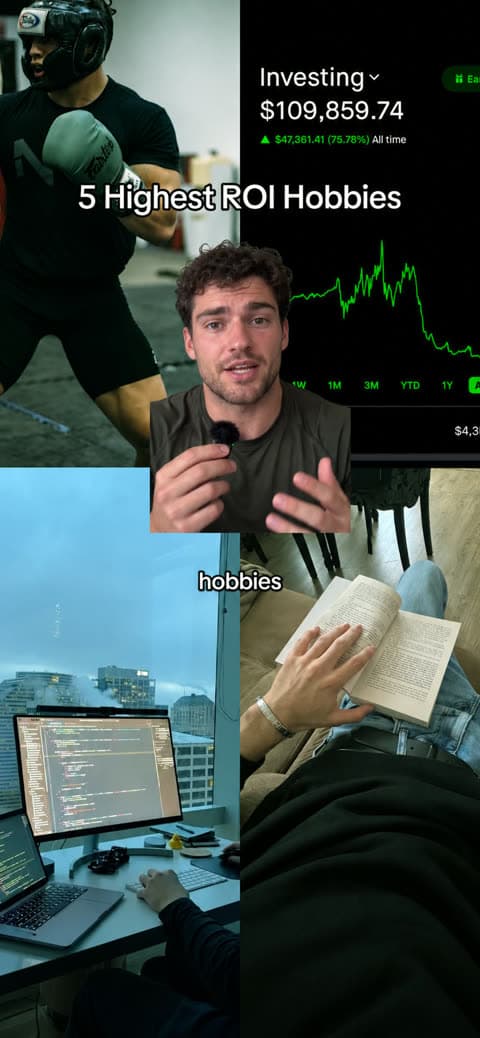
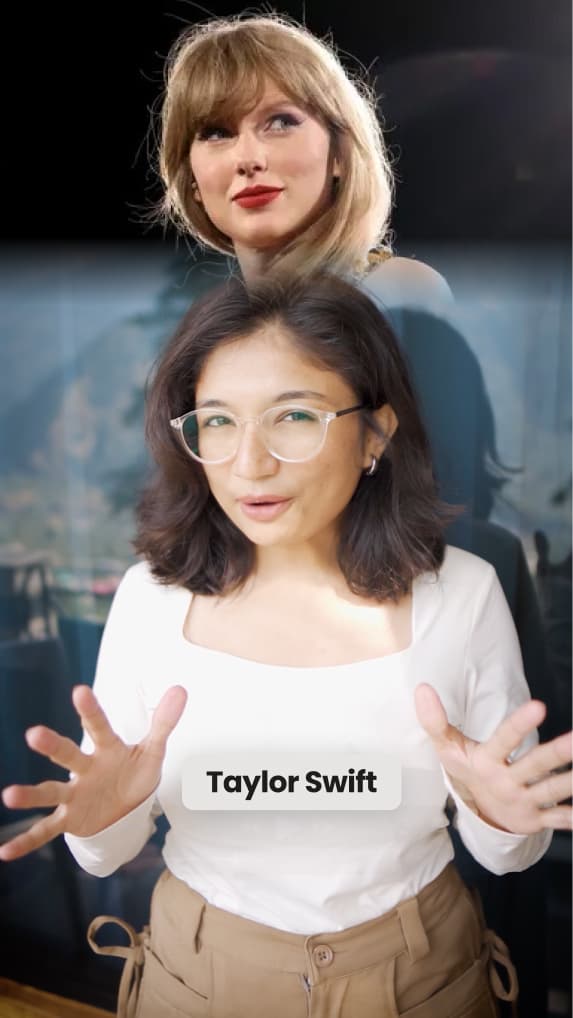
Open with yourself cut out in the middle of a B-roll grid.
The first edit is a starting point, not a locked result. Each element can be changed or removed by clicking on it, on the timeline or the transcript.
Replace any clip with another stock clip, a web image, a GIF or your own upload. The rest of the video stays as it was.
How the AI B-roll worksFix a word or a line the way you would edit text, or regenerate the captions in another language.
How captions are generatedPick a different font, colour, animation or position, per video or as your default.
Rewrite the opening line, restyle it, or take it off entirely.
Change the format from the Formats tab, edit what it created, or remove it and keep the rest of the edit.
Swap the track, change the sound effect on a cut, or mute either.
Pick one of 24 subtitle styles in one click, or save yours to reuse on the next video. Your edits stay put.
Subtitle stylesDownload an MP4 in portrait, landscape or square, or schedule it to your channels from the content calendar.
Publishing from JupitrrGeneral-purpose editors such as CapCut, VEED and Descript give you a broad editing workspace, and many now include AI features. Jupitrr is narrower: it is built to produce a first edit automatically from talking-head footage. If you are weighing editors for this kind of video, see our guide to the best video editors for talking-head videos.
| Capability | Jupitrr AI | General-purpose editors |
|---|---|---|
| Ideal source footage | One person talking to camera, or a voiceover recording | Any footage, from screen recordings to multi-camera shoots |
| What you see after upload | A first edit with B-roll, captions, a hook, music and sound effects already applied | An editing workspace where you build the edit |
| How you edit | Review the first edit and click to change anything, or ask Levio for the change | Arrange clips, tracks and effects on a timeline |
| Contextual B-roll | Matched to relevant moments in your transcript from Getty Images, Pexels, Google Images and GIFs, or your own uploads | Varies by editor. Stock libraries are common, but clips are usually chosen and placed by hand |
| Captions and emphasis | Captions in 54+ languages, with text overlays and emojis placed automatically | Auto-captions are common. Overlays and emphasis are usually added manually |
| Video formats | Tier Lists, Green Screen and 6 more formats, automatically structured from your content and fully editable | Templates require you to add, arrange and time the content yourself |
| Detailed manual editing | Timeline and transcript editing; not designed for multicamera or advanced motion-graphics work | Tracks, keyframes, effects and multitrack compositions |
| Best fit | Experts who publish talking-head video regularly and want the first edit done for them | Anyone who wants full manual control over a wide range of footage |
Explain one concept or share a client story each week without an afternoon of editing.
Learn moreTurn the framework you explain on every sales call into LinkedIn video.
Learn moreTeach one idea per video and let the B-roll and captions carry the explanation.
Learn moreComment on an industry trend or publish direct-to-camera content under your own name.
Learn more
See what the editor returns after upload and how the review step works before anything is published.


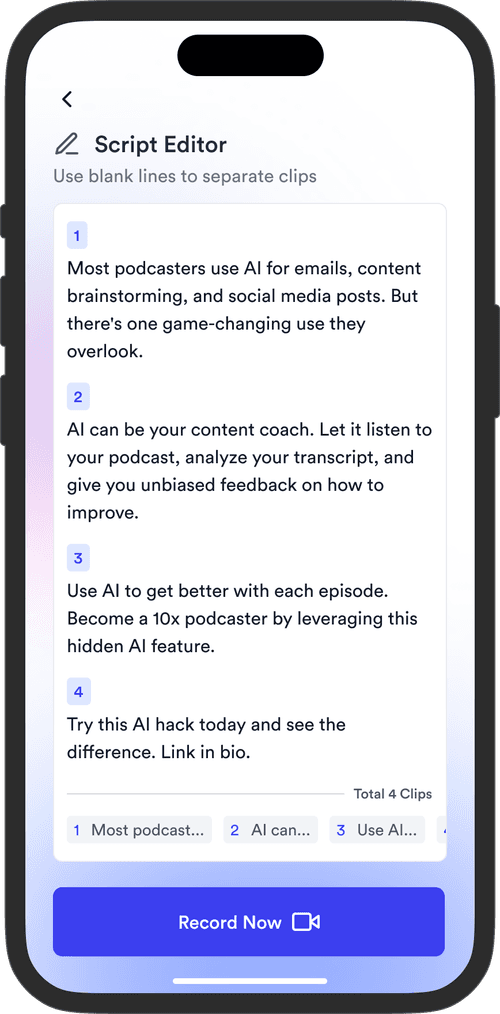
Trained on your scripts & viral scripting framework
Auto Jump-Cut & Silence Removal
YouTube, Instagram, LinkedIn, TikTok, all at once.


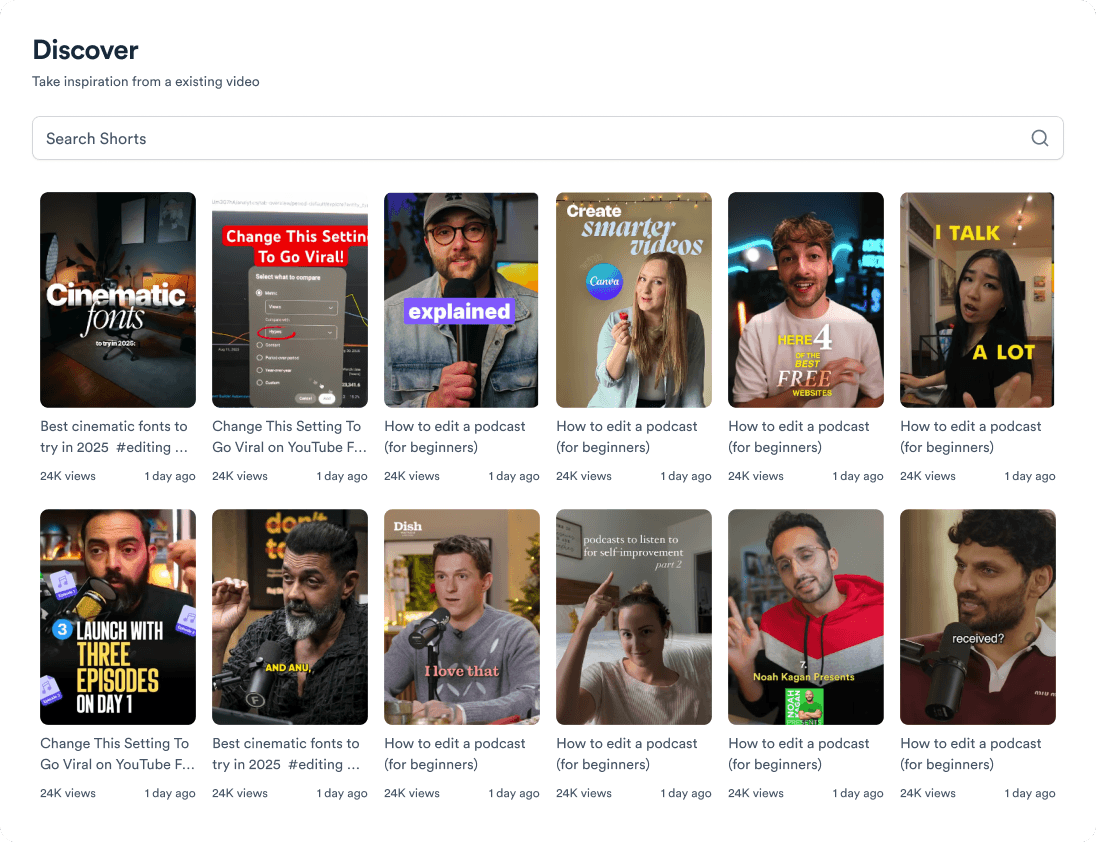
Get inspired for your next videos
Upload a talking-head video and get it back with B-roll, captions, a hook and music in place.