jupitrr logo

AI B-Roll Generator that adds B-roll to talking-head videos automatically

Jupitrr is an AI B-roll generator that places cutaway footage in your talking-head video for you. It reads the transcript, picks the moments that benefit from a visual, matches iStock by Getty Images stock, web images and GIFs to what you are saying, and puts them on the timeline. No editing experience required: swap or trim any clip, then export.

Book a Demo
Loved byTrusted by 200K+ coaches and consultants
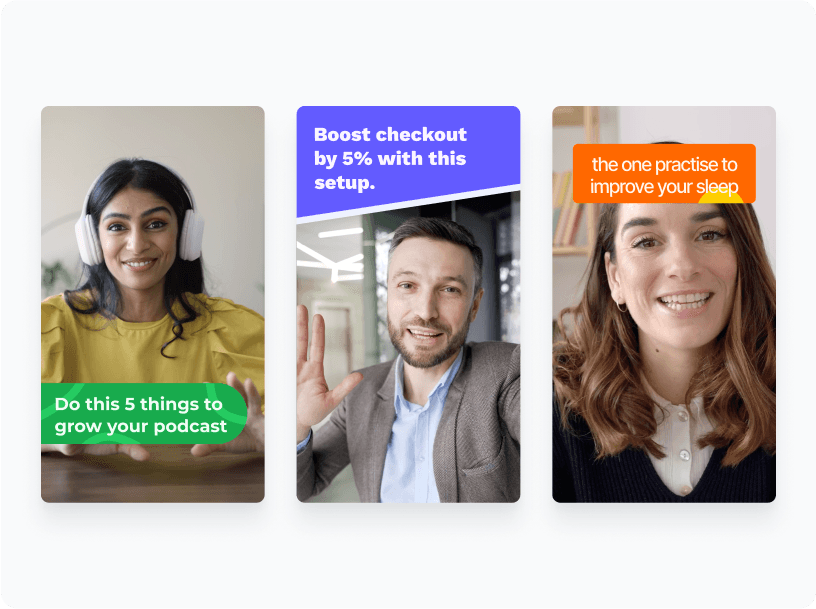
Jupitrr AI B-roll generator placing footage licensed from Getty Images across a talking-head video.
BuildMapper
GatherVoices
myHealthspan
YourPolicy
Goflow
ZipSea

How the AI B-roll generator works: upload, review, export

No blank timeline to start: Jupitrr brings you the first cut with B-roll placed, and you adjust it on the timeline and transcript.

Upload your talking-head video

Drop in the video you just recorded. There is no blank timeline to start and no clip library to browse: Jupitrr transcribes the video as soon as it uploads.

Uploading a talking-head video to Jupitrr for automatic B-roll.

Jupitrr reads the transcript and places the B-roll

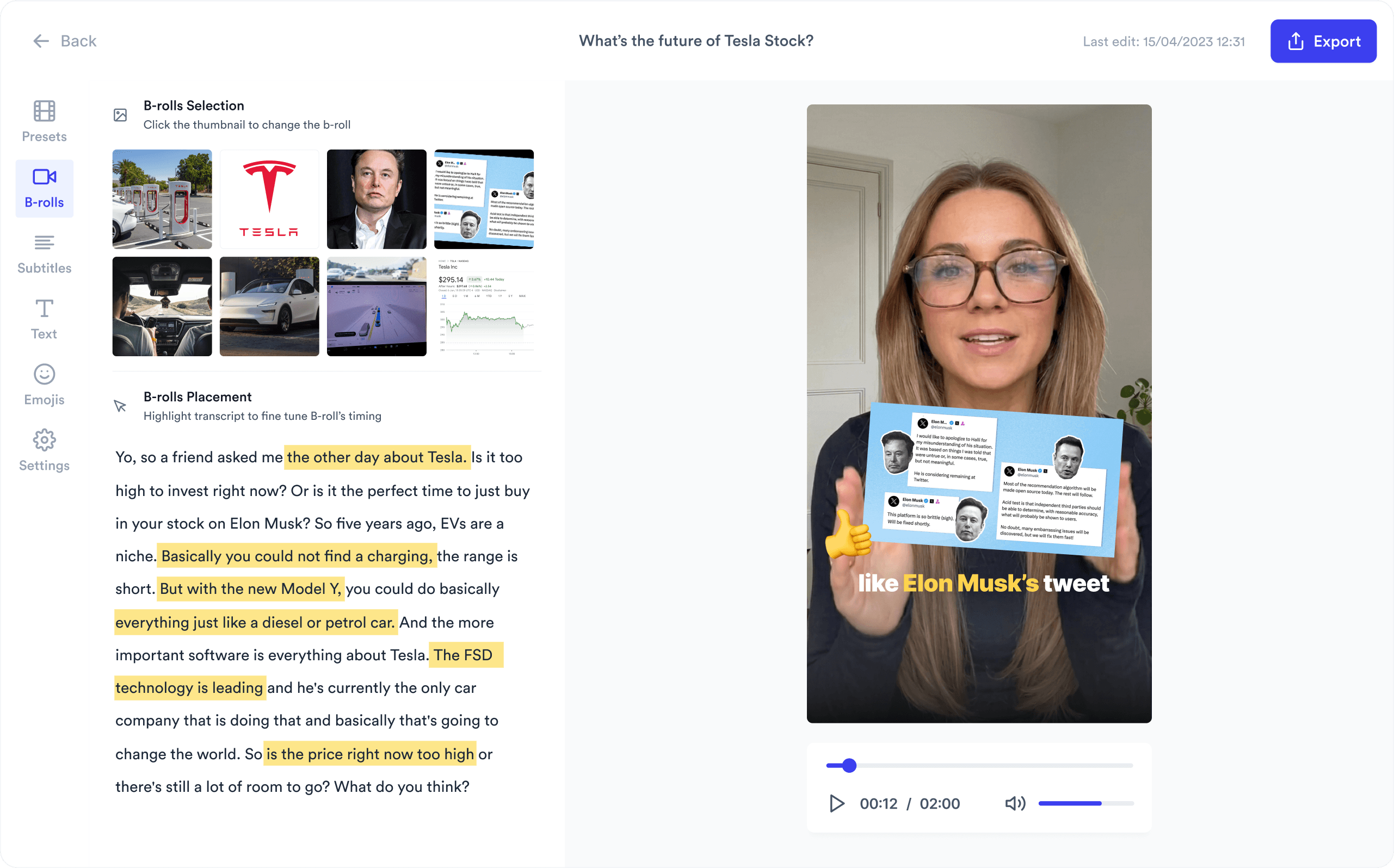
Jupitrr reads the transcript, picks the moments that benefit from a visual, and matches B-roll to what you mean there rather than to a single keyword. Each clip lands at the moment you say it, while stretches that do not need a visual stay on you. The first cut is ready when the editor opens.

Jupitrr matching B-roll clips to lines of a video transcript.

Swap or trim any clip on the timeline, then export

Replace any clip in one click with Getty Images stock, Google Images, GIFs, or your own upload. Drag or trim it on the timeline, change its display style to split screen, fade, overlay, or card, then export the finished video.

Swapping an AI-selected B-roll clip for a different one in Jupitrr.

Every source and style, already applied

Getty Images stock video and image library inside the Jupitrr editor.

Getty Images stock video and stills

Licensed iStock by Getty Images clips, included from Starter.

Choosing Google Images and GIFs as B-roll in Jupitrr.

Google Images and GIFs

A real product shot, a chart, or a reaction GIF when stock is not the right beat.

Split screen, fade, overlay, and card B-roll display styles in Jupitrr.

Display styles, applied for you

Split screen, top fade, bottom fade, overlay, card, or full bleed, picked per clip.

B-roll animation and sound effect settings in Jupitrr.

Animation and sound on every cut

Every clip animates in with slide, zoom, or fade, plus a sound effect on the cut.

Jupitrr matching B-roll to the meaning of each transcript line.

Transcript-aware matching

Clips are chosen for what you mean at that moment, so the footage tracks your argument.

Uploading your own footage to use as B-roll in Jupitrr.

Your own footage too

Upload client clips, product shots, or screen recordings and mix them with the AI picks.

What the AI B-roll generator does, and what stays in your hands

Jupitrr places B-roll in the video you recorded and hands you an editable first cut. This is what happens automatically, what you can change, and the limits worth knowing before you upload. Comparing tools rather than learning this one? See the comparison of AI B-roll tools.

Input
What Jupitrr does automaticallyTranscribes the talking-head video you upload
What you controlSwitch off Add B-roll Automatically when you upload
LimitsUploads up to 5 minutes on Starter, 20 on Pro and 30 on Team
Matching
What Jupitrr does automaticallyPicks the moments that benefit from a visual and places a clip over those words
What you controlSelect any words in Highlight Placement to add B-roll there
LimitsCovers relevant moments, not every sentence. Matches existing footage; does not generate new scenes
Footage
What Jupitrr does automaticallyPulls stock from iStock by Getty Images and Pexels
What you controlSwap any clip for another stock clip, a web image, a Giphy GIF or your own upload
LimitsWeb image search needs Starter or above
Style and motion
What Jupitrr does automaticallyPicks a display style, animation and sound effect for each clip
What you controlChange any clip, or use Apply to all to copy one clip’s settings to every clip
LimitsFade and Split styles work on portrait videos only
Editing
What Jupitrr does automaticallyReturns a first cut with B-roll already on the timeline
What you controlMove, trim, swap or remove any clip; Reset B-rolls restores the default selection
LimitsNo editor-wide off switch: remove the clips you do not want. Editing happens inside Jupitrr, not in Premiere or Final Cut
Licensing
What Jupitrr does automaticallyShows watermarked iStock previews while you edit and removes the watermark on export
What you controlFilter web images by licence before you use them
LimitsEach source has its own licence; confirm the rights before using an export in paid ads or products you sell
Formats
What Jupitrr does automaticallyGreen Screen fills the background with B-roll; Tier List starts with automatic B-roll off
What you controlPick the Format when you upload
LimitsHow much B-roll you get depends on the Format

For every click and setting, follow the step-by-step B-roll guide. B-roll is one part of the edit: the Jupitrr AI video editor adds subtitles, hooks, text overlays, music and sound effects in the same pass.

Trusted by 200K+ coaches and consultants


“Video became so easy that we can produce so much more, promote our services better, and reach a bigger audience.”
Sanjeet Mahajan
Sanjeet Mahajan
Founder of Kizzy Consulting
“Jupitrr turns video creation into an effortless workflow, the edit is actually quality. Now I can focus on strategy.”
Sanket Mittal
Sanket Mittal
Founder of Althra
“Be able to shoot this and then getting a deliverable so quickly is amazing, It literally took me 90 seconds to record so I see the value.”
Sean Huynh
Sean Huynh
Founder of Solara Talent
“The CEO of a half-billion-dollar business told me he loves my videos. People think I hired a marketing agency.”
Buck Foley
Buck Foley
Partner at Crescent Edge

Frequently asked questions

Does Jupitrr add B-roll to every sentence?
No. Jupitrr picks the moments that benefit from a visual and covers those, so stretches where you are simply talking stay on you. To add B-roll anywhere else, select the words in Highlight Placement and choose a stock clip, web image, GIF or your own upload.
What is the fastest way to add B-roll to a video?
Upload the video to Jupitrr and the B-roll is already placed when the editor opens. There is no blank timeline to fill and no searching a stock library clip by clip. Reviewing and swapping the few you disagree with usually takes a couple of minutes.
Is the B-roll copyright-free and safe for commercial use?
Not automatically. iStock by Getty Images footage is licensed stock included on every paid plan, Pexels footage comes under the Pexels License on every plan, and web images come from the open web, so their rights vary by image. Each source has its own licence terms, and the Jupitrr terms ask you to confirm usage rights for your use case, especially for paid ads or products you sell. Our guide to royalty-free vs copyright-free explains what each licence allows.
Can I use my own footage as B-roll?
Yes. Upload your own clips, product shots, or screen recordings and use them alongside the AI-selected footage. Many coaches mix their own session clips with stock so the video still looks like their business.
How does Jupitrr choose which B-roll to use?
Jupitrr transcribes your video, picks the moments that benefit from a visual, and matches footage to what you mean there rather than to isolated keywords. Saying "most people quit in week three" gets a clip about giving up, not a clip of the number three.
How is the B-roll displayed on screen?
Each clip gets a display style rather than a hard cut away from you. Split screen keeps you and the footage side by side, top and bottom fade blend the clip into the frame, overlay floats it over your video, card frames it, and full bleed fills the screen. Jupitrr picks one per clip and you can change it in a click.
Where does the B-roll come from?
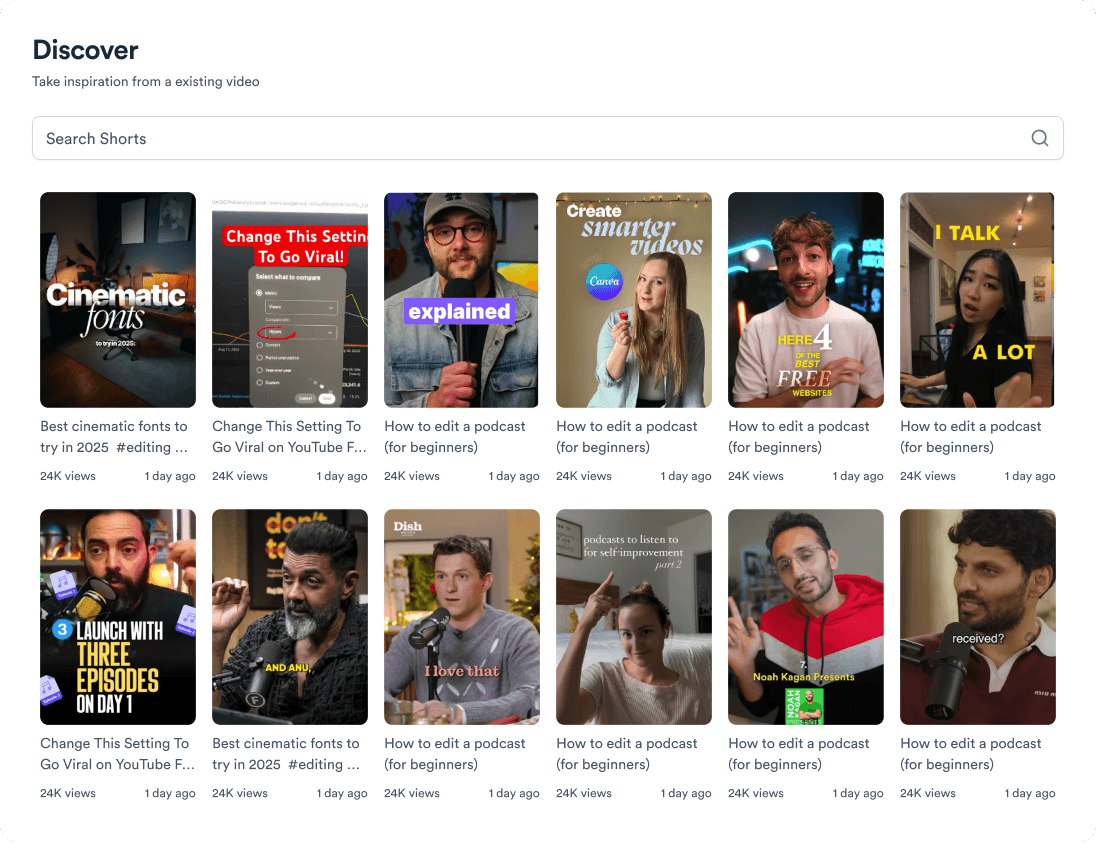
Several sources, all searchable in the editor. iStock by Getty Images and Pexels for stock video and stills, web images for real product shots, charts and reference images (Starter and above), and GIFs from Giphy for lighter moments. You can also upload your own footage and mix it with the AI picks.
Do the B-roll clips animate in?
Yes. Every clip animates in rather than appearing flat, with slide, zoom, and fade options depending on the display style, and a sound effect on the cut. Both are applied automatically and can be changed or turned off per clip.
Can I change the B-roll style across a whole video?
Yes. Set one clip how you like it, then use Apply to all to copy its display style, transition and sound effect to every B-roll clip at once, without touching clips one by one.
Do I need video editing experience to use it?
No. There is no blank timeline to start: Jupitrr brings you the first cut, and no editing experience is required. You upload, review what the AI placed, click, drag, or trim any B-roll on the timeline, swap anything you dislike, and export.
Is the AI B-roll generator free?
Jupitrr has no free plan; you can try a sample video free to see how the B-roll matching works. Starter is $11/mo billed annually ($22 monthly) and includes iStock by Getty Images B-roll and uploads up to 5 minutes.
Does Jupitrr generate new footage from a prompt?
No. Jupitrr matches existing footage, web images and GIFs to the video you recorded. It does not generate new scenes from a text prompt, and it does not create AI avatars or turn a script into a video without you on camera.

Stop hunting for clips.

Upload a talking-head video and get it back with B-roll already placed. No free plan; try a sample video free. From $11/mo billed annually.
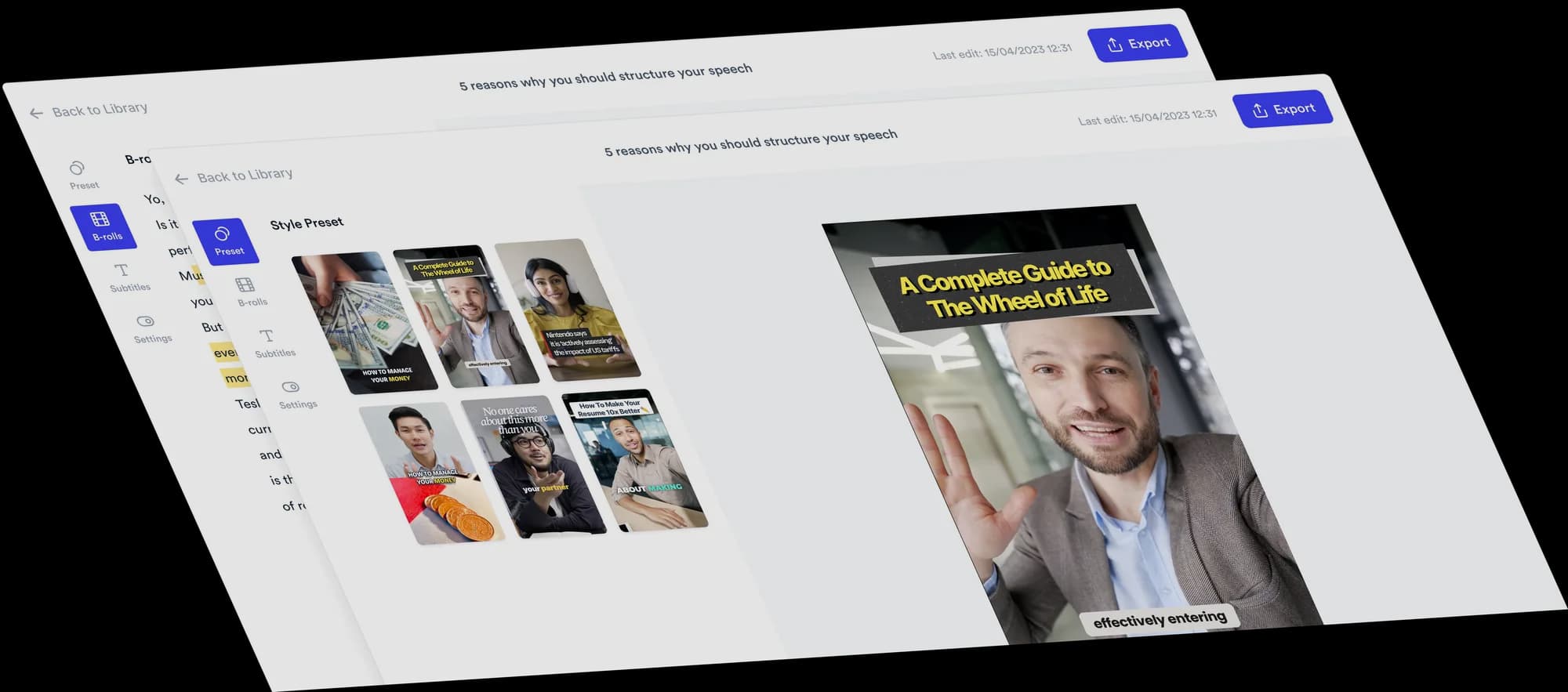

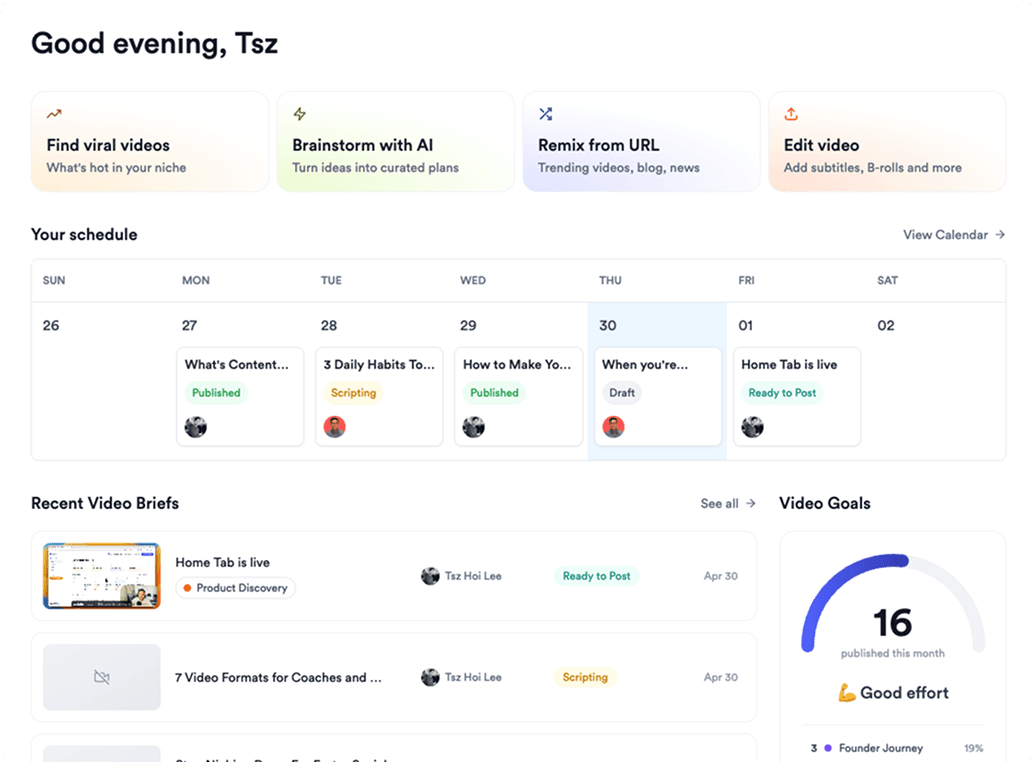
Jupitrr AI dashboard